Contract amendments
How mid-term changes to a contract's terms work, without rewriting the contract itself.
Contract terms are not always fixed for the whole term. A contract has to handle:
- A customer renegotiates their rate mid-term.
- A customer adds seats, a tier, or a new line item.
- A SKU gets swapped for a different one, or retired outright.
- The contract's end date moves, earlier or later.
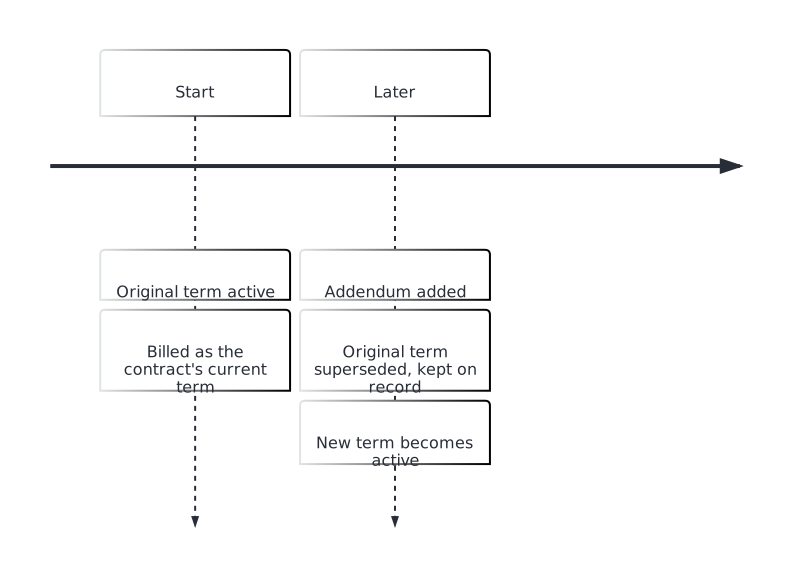
Summance handles each of these with an addendum: a new term that takes over from the moment it's added, while the old term stays on record rather than disappearing. That history matters for revenue recognition and for answering, later, exactly what was in effect on any given date.
How an addendum changes a contract's term
How an addendum gets submitted
An addendum is always a plain-language description of the change, read by an AI interpreter that classifies and applies it. That description can come from three places:
- Directly in the app — type the change into the contract's own addendum editor.
- Through Penny — describe the change in chat, and Penny drafts it into the editor for you to validate or submit.
- Through the API — your own app uploads an addendum document to Summance directly, no screen involved.
Adding an addendum directly
- Open the contract you want to amend. It can't still be a Draft — a Draft contract has no addendum control yet (see Contract lifecycle to activate a draft first). Any other status, Paused included, has the control.
- Click Add Addendum at the top of the contract page. While the editor is open, the same button reads Current, so you can flip back to the contract view without losing your draft.
- Describe the change in plain language — a rate change, a seat count, swapping one SKU for another, retiring a SKU outright, whatever it is. There's no dropdown or separate field: Summance reads the description and works out what to apply.
- Optionally click Validate first. It checks the addendum without submitting it, so you can catch a problem before anything's on the record.
- Click Submit Addendum to apply it. Summance confirms what changed directly below the editor, and a successful addendum shows up immediately in the contract's term history.
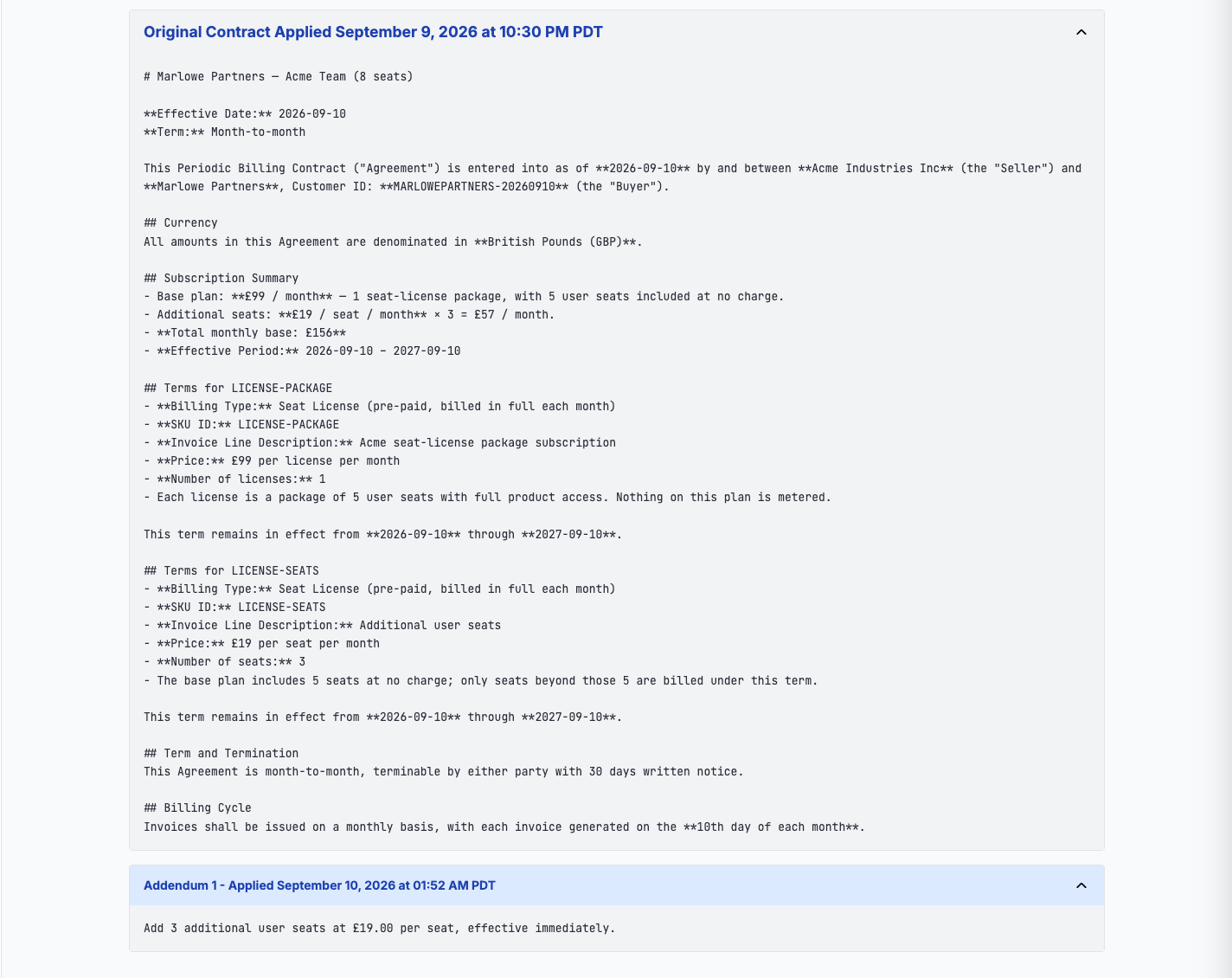
The addendum shown: "Add 3 additional user seats at £19.00 per seat, effective immediately."
- If it can't be applied cleanly, the editor stays open with an explanation so you can revise and resubmit. Discard clears the draft at any point without submitting.
Don't name a SKU that isn't actually on the contract as the one you're changing, replacing, or retiring — that's rejected before anything changes. The new SKU in a swap is different, and so is a plain addition: it doesn't need to exist anywhere first. If Summance doesn't recognize it yet, it creates the SKU automatically as part of the addendum.
Don't submit an addendum priced in a different currency than the contract — that's rejected too.
Adding an addendum through Penny
- Open the contract you want to amend, same as the direct method — Penny works from that same contract context.
- Open Penny in the sidebar and describe the change in your own words: "add two more seats," "extend this contract six months," and so on.
- For a rate, seat-count, or end-date change, Penny writes the addendum text into the same editor the direct method uses, then asks whether to validate or submit it. You decide; Penny doesn't submit on its own.
- Say "validate it" or "submit it" and Penny runs that step for you, through the same mechanism as the editor's own buttons. The result appears in the panel below the editor, and a successful addendum lands in term history the same way.
Do use Penny to describe rate, seat-count, and end-date changes in your own words — it turns them into addendum prose for you, and submits on your say-so.
Adding an addendum through the API
Your own app can submit an addendum without anyone touching a Summance screen. Same rule as the other two methods: describe the change in plain language, as a small text or Markdown file, and the interpreter reads and applies it exactly as it would from the editor or from Penny.
POST /v1/contracts/{contract_uuid}/addendum
Authorization: Bearer <your API key>
Content-Type: multipart/form-data

file: (addendum-text.md, up to 10 MB)
name: "Q3 seat expansion"   (optional)
Don't expect a validate-only dry run from this endpoint — it always applies in one step. Test against a sandbox contract first if you need to check before committing.
How the request flows


Swapping one SKU for another
A swap ends a SKU by replacing it. Name the SKU that's ending and the SKU taking its place in the same addendum, and Summance closes out the old one as the new one starts — the old SKU stops exactly when the replacement's term begins, so there's no gap and no overlap. State the new SKU's own details the way you would for any addition: its SKU id, whether it's seat-licensed or usage-priced, the invoice line description, the price or tiers, and the term dates. Ending a SKU with nothing replacing it works differently — see Retiring a SKU outright below.
Retiring a SKU outright
An addendum can also end a SKU with nothing replacing it — dropping a line item the customer no longer needs, rather than swapping it for something else. Name the SKU that's ending and say when, either as the date it ends or its last active day; either way works, and Summance resolves it to an exact cutoff.
Don't leave the end date unstated. Summance won't guess or default one — an addendum that says a SKU is ending but never says when comes back unprocessed, the same as naming a SKU that isn't on the contract.
Seat-license vs. usage-based: what happens to the SKU you're ending
Both pricing models use the same addendum mechanism above, whether the SKU is swapped for a replacement or retired outright. What differs is what happens to the one ending.
Seat-license (prepaid). Seats are billed in advance, for the term they cover. Adding seats mid-term, like the addendum pictured above, means the new seats bill for what's left of the term. Ending a seat-license SKU mid-term, swapped or retired outright, works in reverse: Summance prorates the unused portion and posts it back as a credit, a real accounting entry, not just a note on the contract.
Usage-based (post-pay).
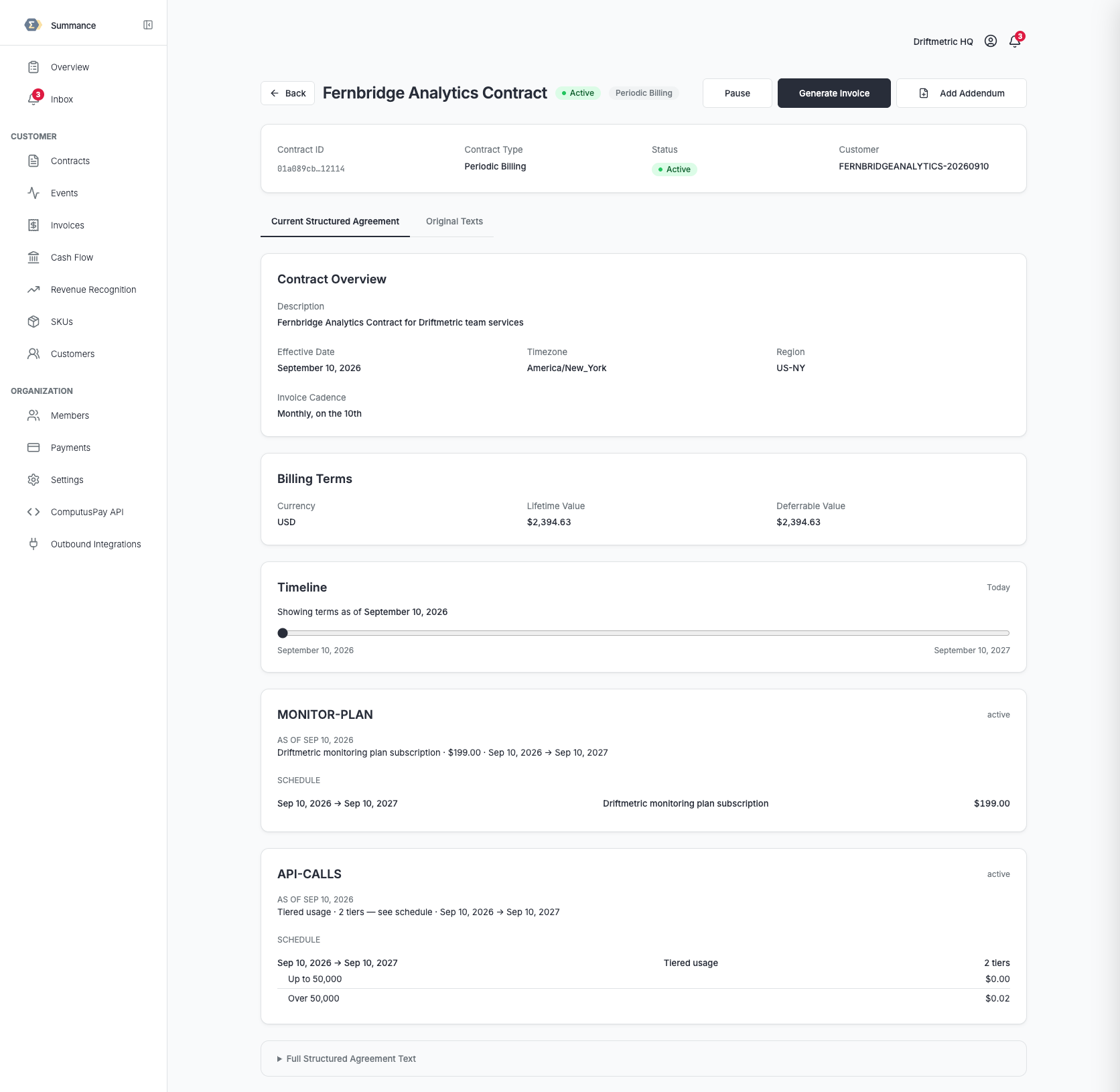
Usage is billed after the fact, for what was actually used. End a usage-priced SKU like the API-CALLS one pictured mid-term, swapped or retired outright, and there's nothing prepaid to credit back — billing on it simply stops at the date given. That's not a missing feature. Crediting back usage nobody paid for in advance would be the wrong behavior.