Contract ingestion
How a contract gets created: typed, uploaded, submitted by your app, or pulled automatically from a CRM deal.
A contract can start almost anywhere: a conversation with a customer, a signed deal already sitting in a CRM, or a call from an app that already has the terms worked out. Summance meets a contract wherever it starts, rather than forcing every one through the same intake form.
Every path below lands as a Draft first — reviewed and activated separately, never live the moment it's submitted.
- Type or paste it — or upload a document instead — on the New Contract screen.
- Describe it to Penny in chat.
- Submit it from your own app, through the API.
- Pull it automatically from a Closed Won CRM deal.
Typing, pasting, or uploading a contract
- Go to New Contract.
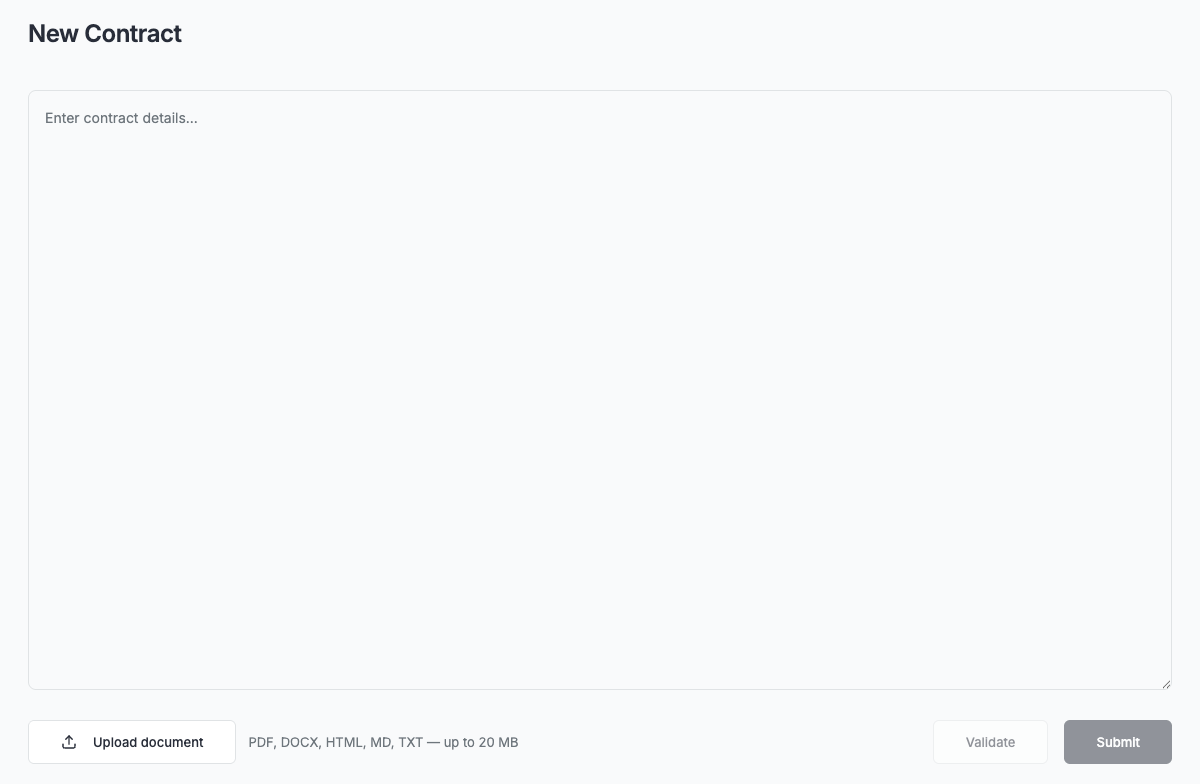
- Type or paste the contract's terms into the text box, or click Upload document to submit a file instead — PDF, Word, HTML, Markdown, or plain text, up to 20 MB. Uploading reads the file and drops its text into the same box; it doesn't submit anything on its own.
- If the box already has text when you upload a file, Summance checks first: "Replace contract draft? The current contract text will be replaced with the uploaded document." Choose Replace to swap it in, or Keep current to back out.
- Optionally click Validate to check the text without submitting it.
- Click Submit to send it to Summance's interpreter. The result appears directly below the box, confirming what was created or explaining what needs fixing.
- A successful submission creates the contract as a Draft. This screen doesn't take you there automatically — open it from your contracts list to review and activate it.
Don't set a start date in the past — Summance rejects it at submission.
Describing a contract to Penny
- Open Penny from the sidebar — it's available anywhere in the app, not just on the New Contract screen.
- Describe the contract in your own words. If you're not already on the New Contract screen, Penny asks to open it first and waits for you to confirm, then continues from there.
- Penny fills in the same text box that screen uses, then asks whether to validate or submit. Say which, and it runs that step through the same mechanism as the screen's own buttons. It's a conversational way to drive that screen, not a separate intake path.
- A contract created this way is a Draft, same as every other path — Penny doesn't skip that step either.
Don't hand Penny a file directly in chat — it can't accept an upload there. Describe the contract instead, or use Upload document on the New Contract screen.
Submitting a contract through the API
Your own app can create a contract without anyone touching a Summance screen. Same as the addendum API: this is a document upload, not a set of pre-parsed fields.
POST /v1/contracts
Authorization: Bearer <your API key>
Content-Type: multipart/form-data

file: (contract-terms.md, or a PDF)
name: "Acme Industries — annual plan"
Summance's interpreter reads the file the same way it reads a typed or uploaded contract on the New Contract screen. The response includes a contract_uuid and an outcome — success, a warning, or an error — plus a message explaining it.
Like every other path, this creates a Draft. Unlike the UI or Penny, your app doesn't need a person to open it and activate it afterward — it can call activation directly:
POST /v1/contracts/{contract_uuid}/activate
Authorization: Bearer <your API key>
This is the one path that can go from nothing to a live, billing contract with no human in the loop at any point.
Reviewing a CRM-pulled contract
- When a deal in your CRM (Salesforce or HubSpot) is marked Closed Won, Summance polls for it and creates a Draft contract automatically — no one has to submit anything.
- Open that contract. It's tagged DRAFT, and unlike every other path above, there's nothing to edit here — this screen is read, then decide: review the terms Summance pulled from the deal, and either activate or discard.
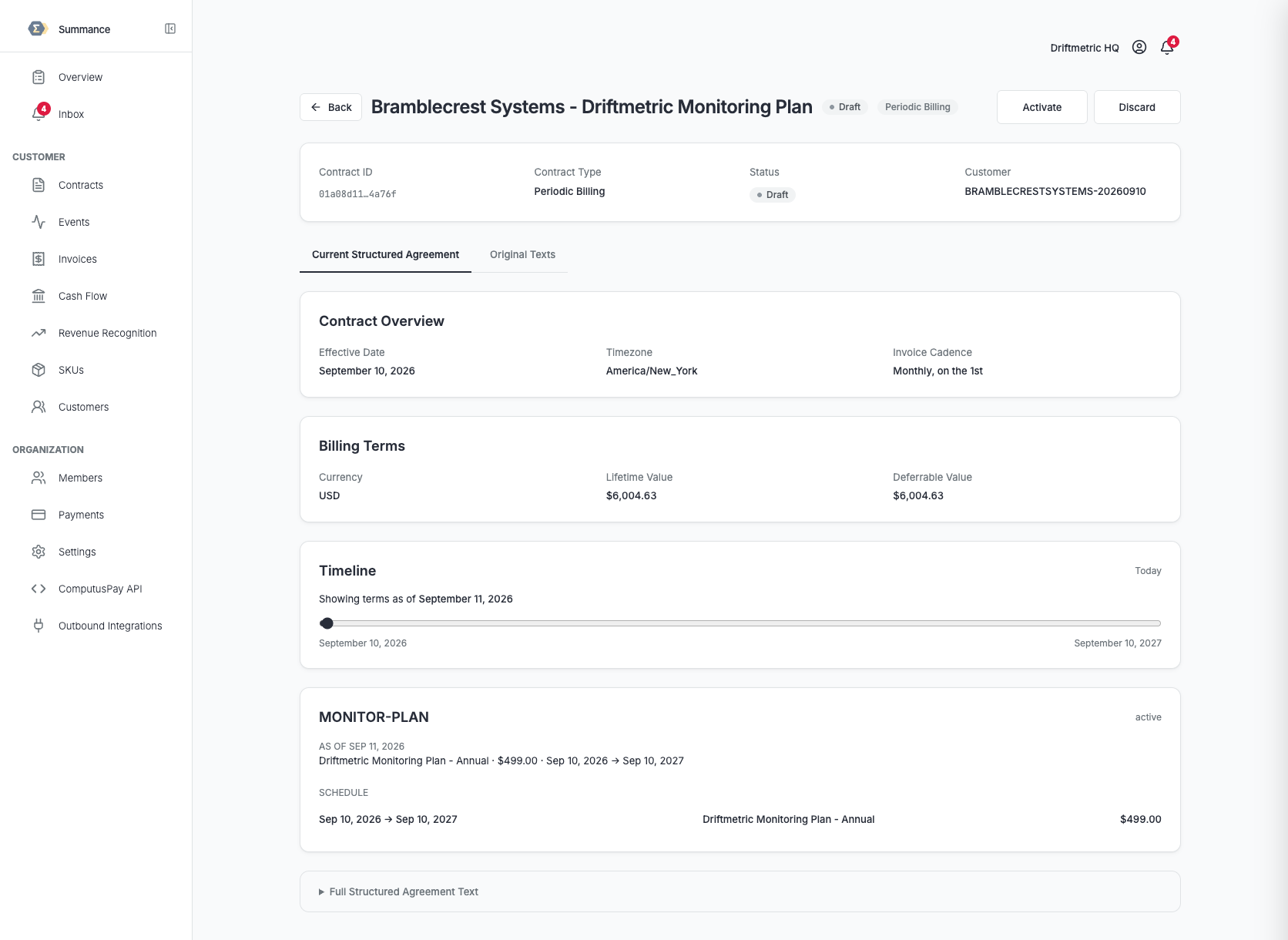
- The Current Structured Agreement tab, which you land on by default, shows what the deal produced: a Contract Overview card with the effective date, timezone, and invoice cadence, and a Billing Terms card with the currency, lifetime value, and deferrable value.
- The Original Texts tab says "No Original Text Stored" for a contract created this way. That's expected, not a bug — original text only exists when a contract went through the AI interpreter, and a CRM-pulled contract skips that step by design: there's no free text to interpret, the deal's own fields map straight across.
- Click Activate to start billing on schedule, or Discard to soft-delete a draft that was never active. Both ask you to confirm first; backing out is Keep draft.
- If the source CRM deal stops being Closed Won before anyone reviews it — reopened, un-won, or removed from the CRM — Summance retires the orphaned draft automatically.


Don't expect a daily invoicing cadence — Summance supports monthly, weekly, quarterly, or yearly only.